Airtable linked tables for schools: 950-student schema
Move from a single Airtable table to linked tables for student tracking. Proven schema for schools managing 950+ students, exams, concerns, and accommodations.
If you are tracking hundreds of students in one giant Airtable table, moving to linked tables is usually the fastest way to make the system easier to update, harder to break, and simpler to report on. The most common “school operations” structure is a central Students table linked to separate tables for Tests/Exams, Concerns, and Credentials/Accommodations, so each student record becomes a hub for everything staff needs to see and do.
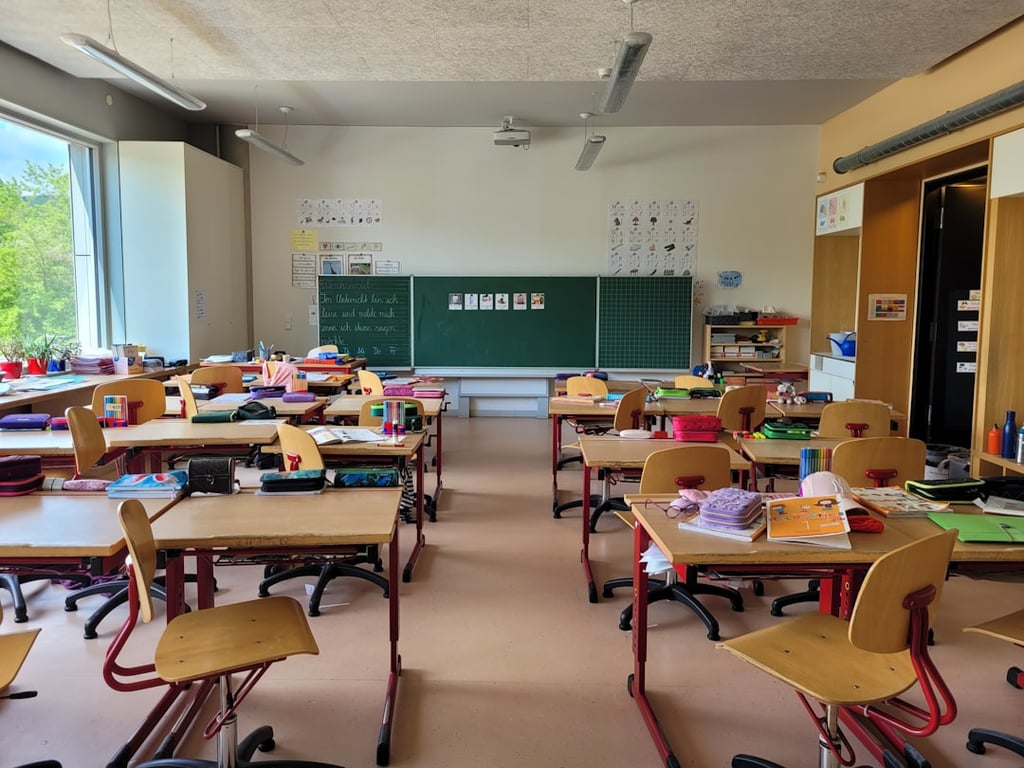
Photo by Nathan Cima on Unsplash — airtable linked tables for student tracking
Coordinators managing teacher-reported concerns that come in “out of cycle”
Anyone using Airtable like a “very fancy Excel spreadsheet” and ready to upgrade to a database
The real-world scenario (950 students)
A common pattern we see is a single “master” table with hundreds of columns.
It works, but only if someone constantly filters, sorts, and remembers how the system is supposed to behave.
As soon as you add multiple exam types, multiple years, and multiple processes (teacher concerns, accommodations, reapplications), the table becomes too wide to manage.
That is the point where linked tables become the simplest option.
When to split a spreadsheet-style table into linked tables
You should strongly consider linked tables when any of these are true:
You have repeating groups in columns.
Example: “Exam 2024 status”, “Exam 2025 status”, “Exam 2026 status”. That is usually a table, not columns.
You need one student to have many related items.
One student can have many concerns, many exams, and many accommodation applications.
You need different workflows for different related records.
Concerns have their own status and follow-ups.
Accommodations have their own deadlines and reapplication cycles.
You are constantly building filtered views to answer simple questions.
“Who is missing paperwork?”
“Who needs to be scheduled for the next exam stage?”
“Which concerns are unresolved?”
Recommended Airtable schema for student tracking
This is a clean baseline for a 950-student system.
1) Students (the hub table)
Purpose: one record per student.
Common fields:
Student name
Student ID (if you have one)
Year level or cohort
Homeroom or class
Status (active, graduated, left)
Links out to:
Tests / Exams
Concerns
Credentials / Accommodations
2) Tests / Exams (unified table)
Purpose: one record per exam event.
Instead of separate year-specific tables, use one table with:
Student (linked record to Students)
Exam type (DARE, state exam, etc.)
School year (2024, 2025, 2026)
Stage (Stage 1, Stage 2, Stage 3)
Status (not started, scheduled, completed, needs follow-up)
Notes
Then create views like:
“DARE 2026 Stage 2 Needs scheduling”
“This week’s exams”
3) Concerns (teacher input)
Purpose: capture teacher-reported concerns so they do not depend on memory.
Fields:
Student (linked)
Concern type (spelling, handwriting, other)
Reported by (teacher name)
Date reported
Status (new, reviewing, action needed, resolved)
Notes
4) Credentials / Accommodations (applications by year)
Purpose: track accommodations as a separate process, especially when you need to distinguish reapplications vs. new applications.
Fields:
Student (linked)
Accommodation type
School year
Application status
Is reapplication (checkbox)
Key dates (submitted, approved, expires)
How to make it student-centric (so the record tells the story)
Once the tables are linked:
Open a student record.
You can see all related exams, concerns, and accommodations.
You can add new records from the student view.
This reduces staff workload because:
Nobody needs to hunt across 5 different filtered views.
The student record becomes the source of truth.
Views that make this usable for staff (not just “correct”)
A good linked-table base still needs the right views.
Student-centric views
Students “Needs action” (has open concerns OR upcoming exam stages OR pending accommodation)
Students “By year level”
Workflow views
Concerns “New this week”
Concerns “Unresolved”
Exams “Stage 2 scheduling list”
Accommodations “Reapplications due”
Simple checkbox-driven automations (start small)
You do not need complex scripting to get real value.
Examples:
If “Needs scheduling” is checked on an exam record, add it to a “Scheduling” view.
If a concern is marked “Action needed”, notify the coordinator, or set a follow-up date.
If an accommodation application is approved, automatically update the student’s overall status.
Teacher input: forms that actually get used
Teacher input works when the form is:
Fast
Mobile-friendly
Pre-structured (not free-text only)
A typical flow is:
A form where the teacher selects:
Class or year level
Student
Concern type
Each submission creates a Concern record linked to the student.
Common mistakes to avoid
Turning every process into its own “mini spreadsheet” table.
Creating separate “Students 2024”, “Students 2025” tables instead of using one Students table with a year/cohort field.
Duplicating student contact fields across multiple tables.
Making 25 views to compensate for a confusing schema.
Tools we use to build this faster
If you want this built with you in a working session, we can do it in Airtable.Airtable
Next step: book a free consulting call
If you want help restructuring your Airtable base into linked tables and setting up staff-friendly views and automations, book a free consulting call here: