Automating product categorization at scale with Zapier (Wix guide)
Learn how to automate product categorization at scale in your Wix store using Zapier and a mapping table. Covers taxonomy, rules, AI classification, and QA.
If you have a Wix store with tens of thousands of SKUs, manual categorization stops being realistic. The practical path is to define a reliable taxonomy (Luxury vs Premium, then gender, then product type), pick the product fields that will drive those decisions, and automate the first pass with Zapier plus a lightweight “mapping table” that you control.
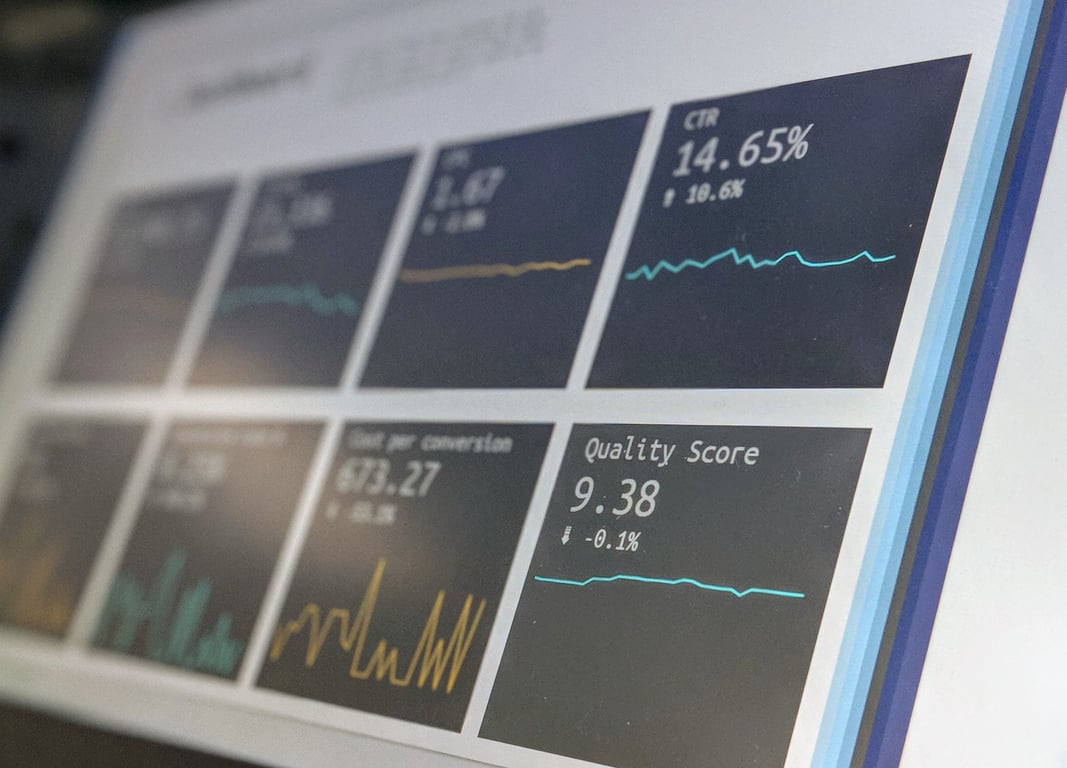
Photo by Stephen Dawson on Unsplash
What “product categorization at scale” actually means
At 40,000+ products with hundreds of updates per day, categorization needs to be:
Rule-driven first: deterministic mapping for the common cases.
Exception-driven second: a review queue for the weird edge cases.
Auditable: you need to know why a product was placed somewhere.
Step 1: Lock down your taxonomy (before automation)
Start by writing your category tree in a simple “source of truth” document or sheet:
Tier: Luxury or Premium
Department: Womenswear or Menswear
Product type: Jackets, Pants, Activewear, etc.
Optional: brand-based collections (if your store UX depends on brand browsing)
If you already created the categories in Wix, keep them. The key is to make the decision rules explicit.
Step 2: Decide what product fields will drive the decisions
For each product, list the fields that arrive reliably from the inventory source (or can be derived). Common candidates:
Brand
Title
Vendor category
Product type
SKU prefix patterns
Existing tags
Then pick 1 to 3 fields that will be your primary classifiers (the fewest that work reliably).
Tip: If your upstream feed is inconsistent, add a normalization step (for example: title casing, trimming, mapping synonyms) before you apply any rules.
Step 3: Build a mapping table you can update without touching automation
Create a table with one row per mapping rule. A simple structure:
Update the product’s categories (and any internal tags you maintain).
If no match:
Add the product to a review queue with the fields needed to decide.
Option B: Batch backfill
If you are re-categorizing an existing catalog, do a batch process first:
Export products.
Classify in bulk.
Import or update categories in Wix.
Then switch to the event-driven workflow for ongoing updates.
Step 5: Where AI fits (and where it does not)
AI is helpful when:
Titles are descriptive but inconsistent.
Vendor categories are noisy.
You need “best guess” classification for long-tail SKUs.
AI is risky when:
You need 99%+ precision for navigation pages.
A miscategorized item breaks promos, discounts, or on-site UX.
A practical approach:
Use rules for Tier (Luxury vs Premium) and known brands.
Use AI for product type classification only when rules do not match.
Always send AI-classified items to a spot-check queue until accuracy is proven.
Step 6: Handle “campaigns” without breaking your permanent taxonomy
Campaigns tend to be temporary and should not require moving products around your main category tree.
Instead, treat campaigns as:
A temporary tag (for example: outerwear-promo)
Or a campaign collection that is additive
Define campaign rules:
What starts a campaign (date range, brand list, product type)?
What ends it?
Should items be added to the campaign group, or moved?
Step 7: QA and error handling at 40k–70k products
At this scale, the workflow needs guardrails:
Sampling QA: review N random products per day.
Exception queue SLA: unmatched products reviewed within X hours.
Change log: store “previous category → new category” changes.
Rollback plan: ability to revert a bad mapping rule.
Common gotchas (Wix + Zapier)
Know the integration direction: Wix’s Zapier integration is often trigger-oriented, and pushing changes back into Wix may require webhooks or other patterns depending on your setup. Wix documents this here: About Zapier Integration (Wix).
Don’t overfit to today’s feed: build your mapping table so you can adapt when vendors change fields or naming.
Example: Monarch Avenue-style setup (lightweight)
Scenario:
40k products now
Daily updates (hundreds to 1,000)
Permanent taxonomy: Luxury vs Premium → gender → product type
Implementation outline:
Mapping table keyed by Brand + keyword patterns
Exception queue for unknown brands
Optional AI step for product type when “brand rule” matches but “product type rule” does not
Next steps
List the exact product fields you reliably receive from your inventory source.
Draft 20 to 50 mapping rules for your most common brands and SKUs.
Implement the “new product → mapping table → update categories” workflow in Zapier.
Add exception handling and a QA loop.
Automate your product categorization with Connex
Getting product categorization automation right at scale requires more than a Zap — it takes a clean taxonomy, a reliable mapping table, and error-handling that holds up when your catalog changes. Connex builds these systems for Wix and other platforms every day. Book a free call to talk through your setup.
Build an automated crawler that finds broken links and missing images, logs each issue to Notion, and routes fixes to an owner, so you skip the manual audits.