In today's fast-paced ecommerce world, staying on top of daily revenue figures is crucial. Automating the process of reporting these figures can save time and reduce errors. In this blog post, we'll walk you through how to automate daily revenue reporting from Google Sheets to Slack using Zapier.
Setting Up Google Sheets and Zapier
Step 1: Create a Zap
First, head over to zapier.com and create a new Zap. Click on the top left orange button Create and then New Zap.
Step 2: Schedule the Trigger
For this workflow, we’ll use the "Scheduled by Zapier" app to trigger the automation daily at 8 AM. This trigger will activate even on weekends. When you test this trigger, it will generate a record with various date and time fields.
Step 3: Format the Date
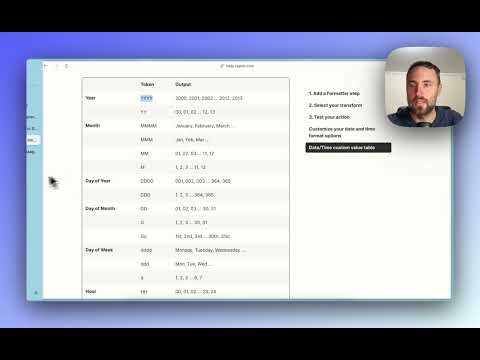
Next, we need to adjust the date to fetch the revenue from the previous day. Use the "Formatter by Zapier" app to subtract one day from the current date. This ensures that if today is June 27th, the system will fetch the data for June 26th.
Step 4: Connect Google Sheets
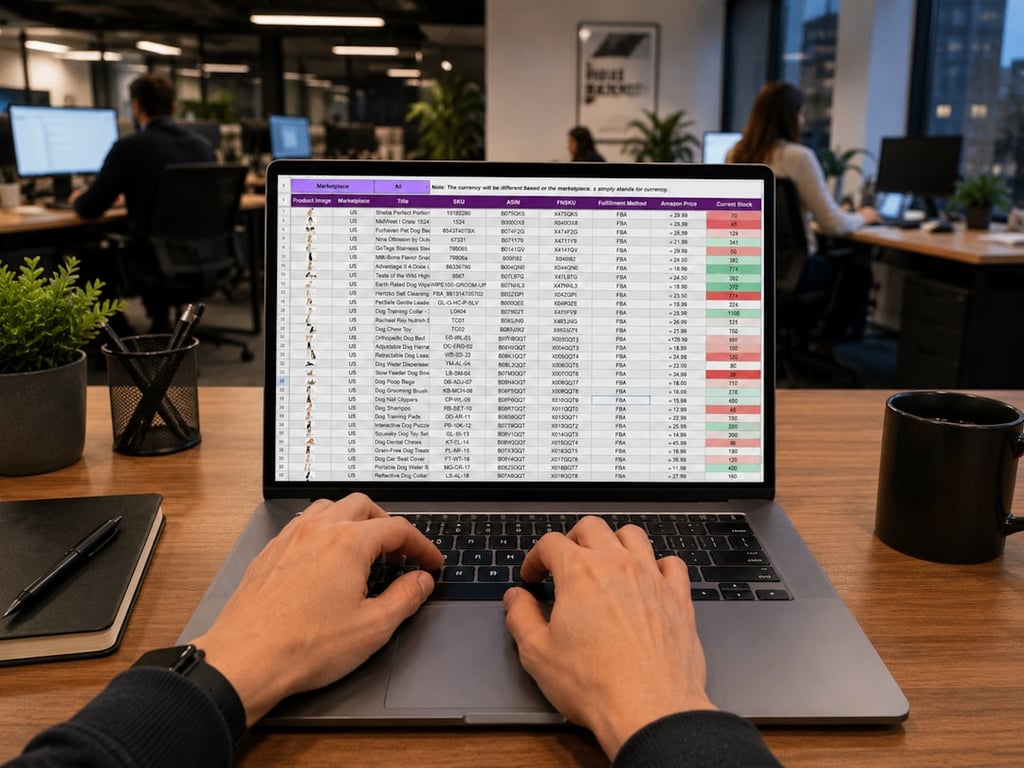
Now, connect your Google Sheets account to Zapier. Select the spreadsheet and worksheet that contain your revenue data. Configure the lookup column to search for the date in Column A. Make sure to set the search to start from the bottom up to ensure the most recent data is fetched.
Finally, connect your Slack account and set up the action to send a message to your desired channel. Customize the message with emojis, static text, and the fetched revenue data to make it more engaging. Use formatting options like bold text to highlight important information.
After setting up the workflow, test each step to ensure everything is working correctly. Once satisfied, hit "Publish" to activate your Zap. From now on, your daily revenue will be automatically reported to your specified Slack channel every morning at 8 AM.
Conclusion
Automating your daily revenue reporting not only saves time but also ensures accuracy and consistency.
If you need any help implementing this workflow, feel free to reach out for a free consultation.
Follow us on LinkedIn and YouTube for more productivity tips.
Build an automated crawler that finds broken links and missing images, logs each issue to Notion, and routes fixes to an owner, so you skip the manual audits.

 Slack Help CenterFormat your messages.