How to Clean Up Your Data Transfers with One Simple Zapier Code Step

How to Clean Up Your Data Transfers with One Simple Zapier Code Step

View Details
Unsplash Cover
Unsplash Cover
Video
General
🔑 Keyword Goals
Generate LK
Generate NL
LinkedIn Post Content
🚀 Struggling with messy data transfers? Our latest blog post reveals how to clean up your reports using a simple Zapier Code step! Say goodbye to unprofessional-looking reports filled with blank spaces and hello to polished, readable data.

In just a few easy steps, you can transform your data into professional reports that highlight only the necessary information.

Check it out and streamline your workflows today!

🔗 Read more here

#Zapier #Automation #DataManagement #Connex #WorkflowOptimization
Hidden
Full URL
Unsplash Cover
Unsplash Cover
KW AI GEN
Data cleanup, Zapier automation, professional reports
Last edited time
Jul 27, 2026 05:42 PM GMT+0
When dealing with forms or data sources where not all fields are mandatory, you may end up with messy, unprofessional-looking reports filled with blank spaces. In this tutorial, we'll show you how to use Zapier's Code step to clean up your data transfers and create polished, professional reports – even when working with incomplete data.
Video preview

The Problem: Messy Data Transfers

Imagine you have a form where users can submit information, but not all fields are required. When you transfer this data to another application, like Google Docs, you might end up with a report that looks like this:
First Name: John Last Name: Email: Date: 2024-03-15 Question 1: Question 2: Yes, I'm interested
Those blank lines can make your report look unprofessional and difficult to read. Wouldn't it be great if we could only include the fields that actually contain data?

The Solution: One Simple Zapier Code Step

notion image
By adding a simple JavaScript code step in your Zapier workflow, you can transform your messy data into a clean, professional report. Here's how to do it:
  1. Set up your Zap with your trigger (e.g., a new form submission) and your action (e.g., creating a Google Doc).
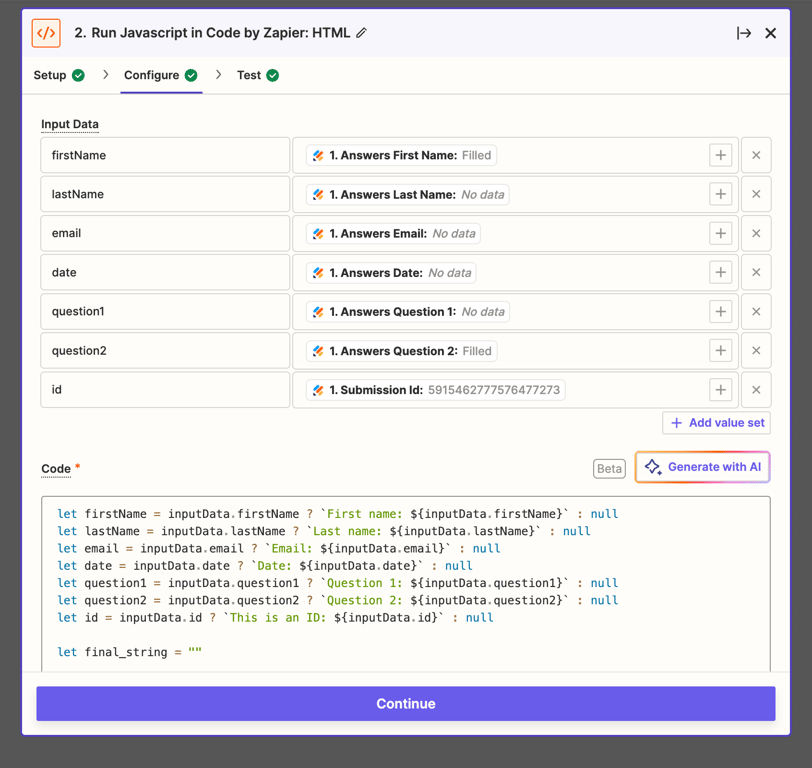
  2. Add a "Code by Zapier" step between your trigger and action.
  3. Choose "Run JavaScript" as the action event.
  4. In the "Input Data" section, map all the fields from your trigger step.
  5. Copy and paste the following code into the "Code" section:
let firstName = inputData.firstName ? `First name: ${inputData.firstName}` : null let lastName = inputData.lastName ? `Last name: ${inputData.lastName}` : null let email = inputData.email ? `Email: ${inputData.email}` : null let date = inputData.date ? `Date: ${inputData.date}` : null let question1 = inputData.question1 ? `Question 1: ${inputData.question1}` : null let question2 = inputData.question2 ? `Question 2: ${inputData.question2}` : null let final_string = "" if(firstName) { final_string += firstName + "<br>"; } if(lastName) { final_string += lastName + "<br>"; } if(email) { final_string += email + "<br>"; } if(date) { final_string += date + "<br>"; } if(question1) { final_string += question1 + "<br>"; } if(question2) { final_string += question2 + "<br>"; } output = [{final_string: final_string}];
  1. In your final step (e.g., creating a Google Doc), use the output from the Code step instead of mapping individual fields.

How It Works

This code does a few key things:
  1. It defines a final_string value that takes a label and a value. If the value exists, it creates a string with the label and value. If not, it returns an empty string.
  2. It then builds the output string by calling this function for each field.
  3. Only fields with actual values will be included in the final output.

The Result

After implementing this Code step, your report will look much cleaner:
First Name: John Date: 2024-03-15 Question 2: Yes, I'm interested
No more blank lines or empty fields!

Customizing the Code

You can easily customize this code to fit your specific needs:
  • Add or remove fields by adding or deleting lines in the output construction.
  • Change the formatting by modifying the final_string function.
  • Add additional logic or transformations as needed.

Conclusion

With this simple Code step in Zapier, you can dramatically improve the quality and professionalism of your automated reports and data transfers. No more messy, empty fields – just clean, readable data every time.
Remember, this technique isn't limited to form submissions and Google Docs. You can use it with any combination of apps in Zapier where you need to clean up data transfers or build dynamic strings.
Give it a try in your next Zap and see the difference it makes in your workflows!

Need support setting this up? We can help!

Streamline your data transfers and eliminate cluttered reports by using Zapier's powerful automation with apps like Google Docs. Book a call with us to discover how our expert solutions can enhance your workflows effortlessly.