How to Handle Tour Traveler Flight Changes in Airtable Without Breaking Your Automations
When tour travelers switch tours, stale flight records can reappear in Airtable. Fix it in 4 steps: trace the automation, add a Flight Change view, resend override, unlink/delete.
When a traveler switches tours in your Airtable base, their old flight data doesn't just disappear — it keeps coming back. This happens because Airtable's automations match travelers to flights by traveler ID, not by their current tour. Here's how to fix stale flight records cleanly and keep your notification automations working without a manual data hunt every time.
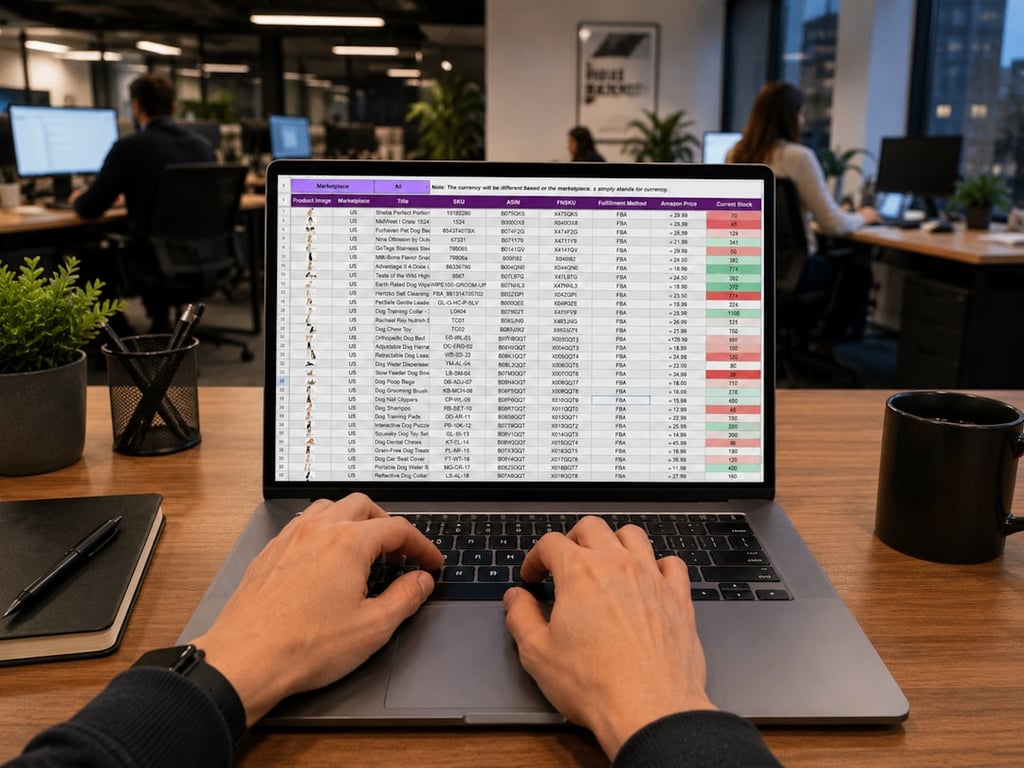
Managing Airtable flight data for tour operators — photo by Rocker Sta on Unsplash
The Problem: Deleted Flight Data Keeps Reappearing
Tour operators using Airtable to manage traveler logistics often hit this wall: a traveler transfers to a new tour, but their old flight details won't go away. You delete the record — and Airtable adds it right back.
The root cause is your "duplicate flight info" automation. It typically fires with a condition like:
Traveler ID matches a flight record
Arriving flight field is empty
Because the automation checks for any flight linked to the traveler (not just flights for the current tour), it finds the old flight and re-links it. The result: your traveler never receives the new flight info form, because the system believes they already have flight data on file.
Step 1: Trace the Automation Chain
Before making any changes, identify exactly what's triggering the re-population:
Open your Airtable Automations panel and find the automation handling flight data (often named something like "Duplicate flight info" or "Send flight form")
Review the trigger conditions: look for any lookup or formula that matches travelers to flights without filtering by current tour
Note the specific field creating the stale link (often a lookup field like "Also on flight" or "Flight via traveler ID")
The fix is not deleting the flight record — it's first removing the traveler from the flight record, then deleting the now-empty stale flight.
Step 2: Create a "Flight Change" View
Instead of hunting through your main Travelers table each time someone switches tours, build a dedicated Flight Change view in Airtable:
Go to your Travelers table
Create a new Grid view named "Flight Change"
Add the fields needed for triage: name, email, current tour (sign-up link), existing flight info, and the lookup field causing the conflict
Optionally filter the view to show only travelers whose flight tour doesn't match their sign-up tour
This gives your team a clean workspace for handling edge cases without disrupting your primary views.
Step 3: Add a Manual Override Checkbox
Date-based automations (like "send flight form if last reminder was more than 7 days ago") won't fire immediately for travelers whose flight data was just cleared — the timer hasn't elapsed. Add a manual override:
Add a checkbox field to your Travelers table: "Resend Flight Form"
Create a new automation:
Trigger: When "Resend Flight Form" is checked
Action: Run the same email action as your standard flight form automation
From the Flight Change view, check the box for each affected traveler to send their new flight info request on demand
This bypasses the date restriction entirely and works for any one-off scenario.
Step 4: Remove the Traveler, Then Delete the Stale Flight
Follow this sequence to break the link cleanly:
Open the stale flight record and remove the traveler from the relation field
Confirm the traveler no longer appears in the flight record
Delete the now-empty flight record
With the flight record gone, the "duplicate flight info" automation has nothing to re-populate, and your traveler now has an empty flight field, making them eligible to receive the new form.
Why Tour Operators Hit This Edge Case
Automating traveler communications in Airtable dramatically reduces manual follow-up. But complex scenarios (like mid-season tour transfers triggered by external events) require escape hatches that let you override automation logic without rebuilding your entire workflow.
A dedicated Flight Change view and a manual override checkbox give operations teams the flexibility to handle exceptions quickly while keeping the rest of the automation pipeline running on schedule.
Need Help with Your Airtable Automations?
📅
Ready to build smarter automations for your tour business? Connex Digital specializes in Airtable workflow design for service businesses. Book a free discovery call to see how we can cut the manual work from your operations.
Build an automated crawler that finds broken links and missing images, logs each issue to Notion, and routes fixes to an owner, so you skip the manual audits.