Notion team spaces: best practices for a 6-person team
🧭

Notion team spaces: best practices for a 6-person team

View Details
Link
Apps
Unsplash Cover
Unsplash Cover
Video
Prompt status
Needs review
General
🔑 Keyword Goals
Generate LK
Generate NL
LinkedIn Post Content
🚀 Excited to share our latest blog post on best practices for setting up Notion team spaces and dashboards, specifically tailored for small teams!

In this guide, we cover everything from creating open and closed teamspaces to establishing a centralized Home dashboard. Learn how to effectively use pages vs. databases and keep your team's workflow organized with linked database views.

Whether you're just starting out or looking to optimize your existing setup, this post has valuable insights for everyone!

👉 Read more here: Notion team spaces and dashboards: best practices for a 6-person team

#Notion #TeamManagement #Productivity #SmallBusiness #Connex
Hidden
Full URL
Unsplash Cover
Unsplash Cover
KW AI GEN
Notion team spaces, dashboards, best practices, small team
Last edited time
Jul 27, 2026 05:55 PM GMT+0

Quick answer

For a 6-person team, the simplest Notion setup is usually one open teamspace for shared work, one closed (or private) teamspace for sensitive content, and a single Home dashboard page that links to 3–4 linked database views. You can build this in an afternoon — and it scales cleanly as you grow.
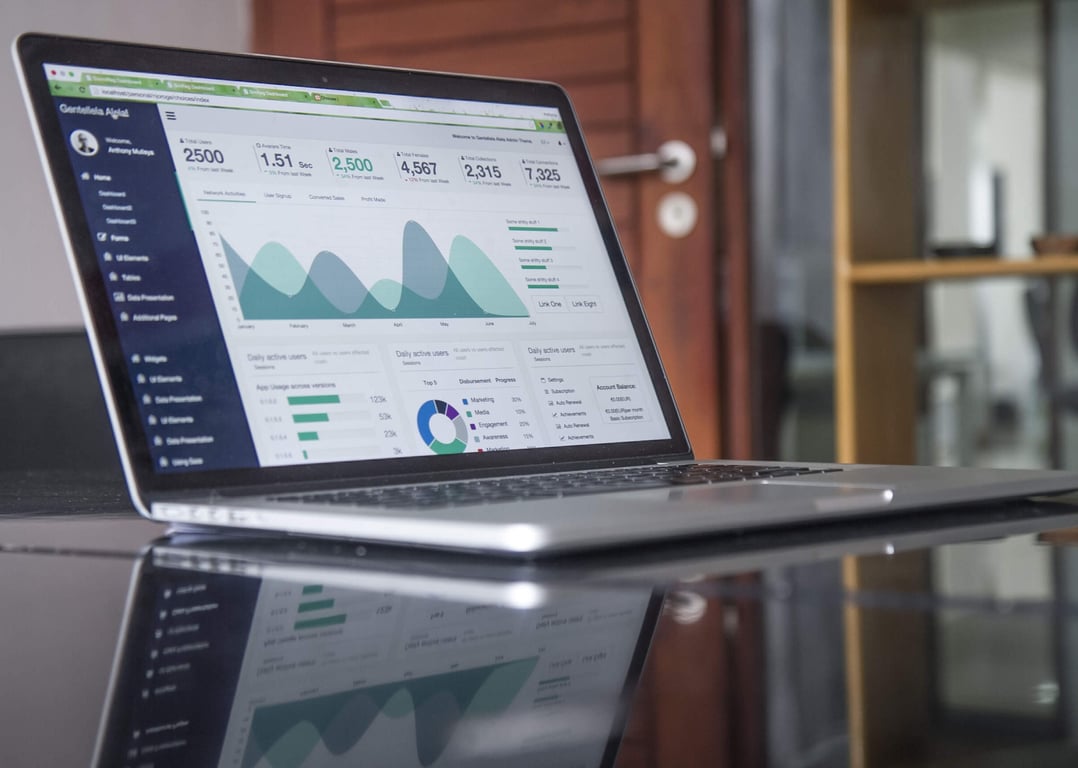
Photo by LinkedIn Sales Solutions on Unsplash

What teamspaces are (and which kind to use)

A Notion workspace can be divided into teamspaces. Each teamspace has an access model that controls who can see and join it.

Open teamspace (default for most teams)

Use an Open teamspace when everyone in the company should be able to see the teamspace content.
  • Good for: company wiki, shared projects, shared task tracker, shared dashboards
  • Simple rule: If anyone can benefit from finding it, keep it open.

Closed teamspace (good for "need-to-know")

Use a Closed teamspace when only specific people should be able to access it by default.
  • Good for: operations, ISO documentation, internal processes, client delivery docs
  • Simple rule: Default is "not in here unless invited."

Private teamspace (for truly sensitive work)

Use a Private teamspace for founder or leadership discussions where non-members should not even see that the teamspace exists.
  • Good for: founder strategy, compensation, hiring decisions

Recommended architecture for a 6-person team

Keep it small and obvious. You can always expand later.

1) Create 2–3 teamspaces max

  • Company Home (Open)
  • Ops / ISO (Closed)
  • Founders (Private) (optional)

2) Put one Home dashboard in the Open teamspace

Your Home dashboard is a page that acts as the first click for the whole team.
Include:
  • Quick links: Sales assets, marketing assets, onboarding docs
  • Work trackers: Tasks and projects
  • Key dates: Client deadlines and deliverables
  • How we work: A short "Where to put things" guide

Pages vs databases (a practical rule)

When deciding between pages and databases, use this heuristic:
  • Use a page when the content is mostly static documentation (a process, a policy, a checklist that does not need filtering).
  • Use a database when the items are repeatable and you want any of these:
In Notion, database rows are still pages, which means you can keep details, files, and meeting notes inside each item. This makes databases more versatile than they first appear — a projects database can hold all your project notes without separate pages.

How dashboards work: linked database views

Dashboards stay simple when you keep your "source of truth" databases centralized, and then pull tailored views into each dashboard.
A linked database shows the same underlying database in multiple places. Changes to the items themselves sync back to the original database, while filters and sorts stay local to that linked view. This means one change in your source propagates everywhere — no copy-pasting across dashboards.

Example: one task database, many dashboards

  • Main database: "Tasks" (source of truth)
  • Linked view on Home dashboard: "Team tasks due this week"
  • Linked view on a private page: "My tasks" filtered by Assignee = Me
  • Linked view inside a project page: "Project tasks" filtered by Project = This project

Key dates and Google Calendar: what to expect

If you are trying to display only selected deadlines from Google Calendar inside a Notion database, plan on manually adding the dates (or using automation). For most small teams, the cleanest split is:
  • Keep meetings in Google Calendar.
  • Keep deliverables and deadlines in Notion (as a database with clear owners).
Then your dashboard can show upcoming deliverables without importing your entire calendar.

Where to put sales and marketing assets

For teams that already store files in Google Workspace, Notion works best as the index and the context layer.
  • Keep the actual files in Drive.
  • In Notion, create a "Sales assets" page and "Marketing assets" page.
  • Link out to the canonical Drive folders, and document when to use what.

A quick migration note for Monday.com teams

If you are coming from Monday.com, start by rebuilding only the minimum:
  • Tasks database
  • Projects database
  • A Home dashboard with linked views
Once the team is using that daily, you can decide what else belongs in Notion versus staying in other tools.

Get help setting up your Notion workspace

Designing a clean Notion workspace for a small team — one that stays organized as you grow — takes some trial and error to get right. If you'd rather build it once and get it right, book a ZoomFlow session. One of our consultants will work through your specific setup with you live and ship the working architecture in the same call.